
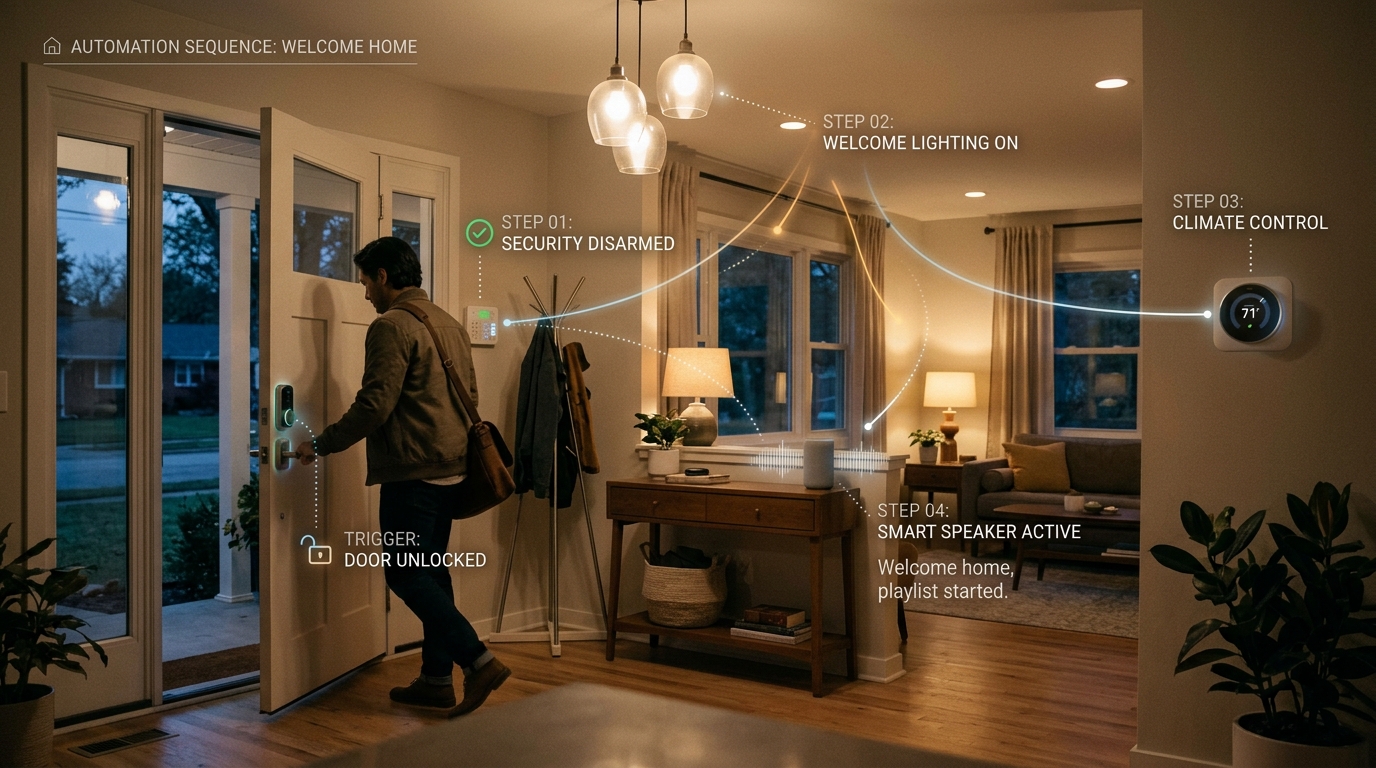
Imagine arriving home after a long day, unlocking your door, and being greeted by a seamless sequence of comforting actions – lights turning on, music softly playing, and your favorite scent filling the air. This is the magic of automating a “Welcome Home” sequence triggered by unlocking the door. In this post, we will explore how you can create a welcoming and inviting atmosphere in your home through simple automation techniques.
Setting up the Automation
Setting up the automation system for your smart lock involves a few key steps to ensure smooth operation. First, make sure you have a compatible smart lock and a hub or bridge that supports automation. Next, install the smart lock according to the manufacturer’s instructions, ensuring it is connected to your home Wi-Fi network. Once the lock is physically installed and online, you can proceed to set up the automation features.
Creating a user account on the smart lock app or platform is typically the next step. This account will allow you to access and control the lock remotely. After setting up your account, follow the app’s instructions to add the smart lock to your account. This usually involves scanning a QR code or entering a unique code provided with the lock. Once the lock is successfully added to your account, you can begin configuring automation settings to streamline access control and enhance security.
Connecting the Smart Lock
Connecting the smart lock to your automation system is a crucial step in ensuring seamless operation of your smart home setup. First, make sure that your smart lock is compatible with your automation hub or system. Consult the manufacturer’s guidelines for specific instructions on how to connect your smart lock to the system.
Once you have determined compatibility, follow the steps provided by the smart lock manufacturer to pair the lock with your automation system. This usually involves putting the smart lock into pairing mode and then using the automation system’s app or interface to search for and connect to the lock. Make sure to test the connection and ensure that you can control the lock remotely before proceeding to the next steps in setting up your automation sequence.

Creating the Automation
Setting up automated actions is a crucial step in achieving a seamless smart home experience. To create an automation, start by accessing the automation tab in your smart home app. Next, select the option to create a new automation. You will be prompted to choose a trigger that will initiate the automation process. This trigger could be a specific time of day, a sensor detecting movement, or a change in a particular device’s status.
Configuring the automation settings
Once you have set the trigger, the next step is to configure the actions that will be automatically performed when the trigger conditions are met. This could involve turning on lights, adjusting the thermostat, or locking the smart door. You can also specify any additional conditions that need to be met for the automation to execute successfully. It’s essential to test the automation thoroughly to ensure it functions as intended and make any necessary adjustments to fine-tune its performance.
Testing the Sequence
Testing the sequence is a crucial step in ensuring that the automation process functions as intended. Begin by running a test scenario to verify that each step of the sequence executes correctly. This can involve simulating different scenarios to validate the responses of the smart lock and other connected devices. Make sure to document any issues or unexpected behaviors that arise during testing.
Once the initial test is successful, conduct thorough testing under various conditions to ensure the reliability and consistency of the automation sequence. Test the sequence with different user inputs, timings, and environmental factors to identify any potential weaknesses or failure points. It is essential to address any issues promptly and refine the automation sequence until it performs reliably in real-world conditions.
Troubleshooting Tips
Connection Issues: If you are experiencing connection issues with your smart lock, first ensure that the lock is within range of the hub or your Wi-Fi network. Check for any obstructions that might be interfering with the signal. Restarting the lock, hub, or router may also help resolve connectivity issues.
App Malfunctions: In case the mobile app is not responding or functioning properly, try closing the app and reopening it. If the issue persists, uninstall and reinstall the app. Make sure that the app is updated to the latest version to avoid compatibility issues with your smart lock.
After setting up and testing the automation sequence for your smart lock system, it is important to reflect on the process and outcomes. The conclusion serves as a summary of the entire operation, highlighting the key points and results achieved.
Key Takeaways
In conclusion, the successful implementation of the automation sequence not only enhances convenience but also improves security measures for your property. By connecting the smart lock and creating a seamless automation process, you have streamlined access control and monitoring.
Future Enhancements
Looking ahead, there are opportunities for further enhancements to the smart lock system. Consider exploring additional features such as remote access control, integration with other smart devices, or implementing advanced security protocols to strengthen the overall automation experience.