
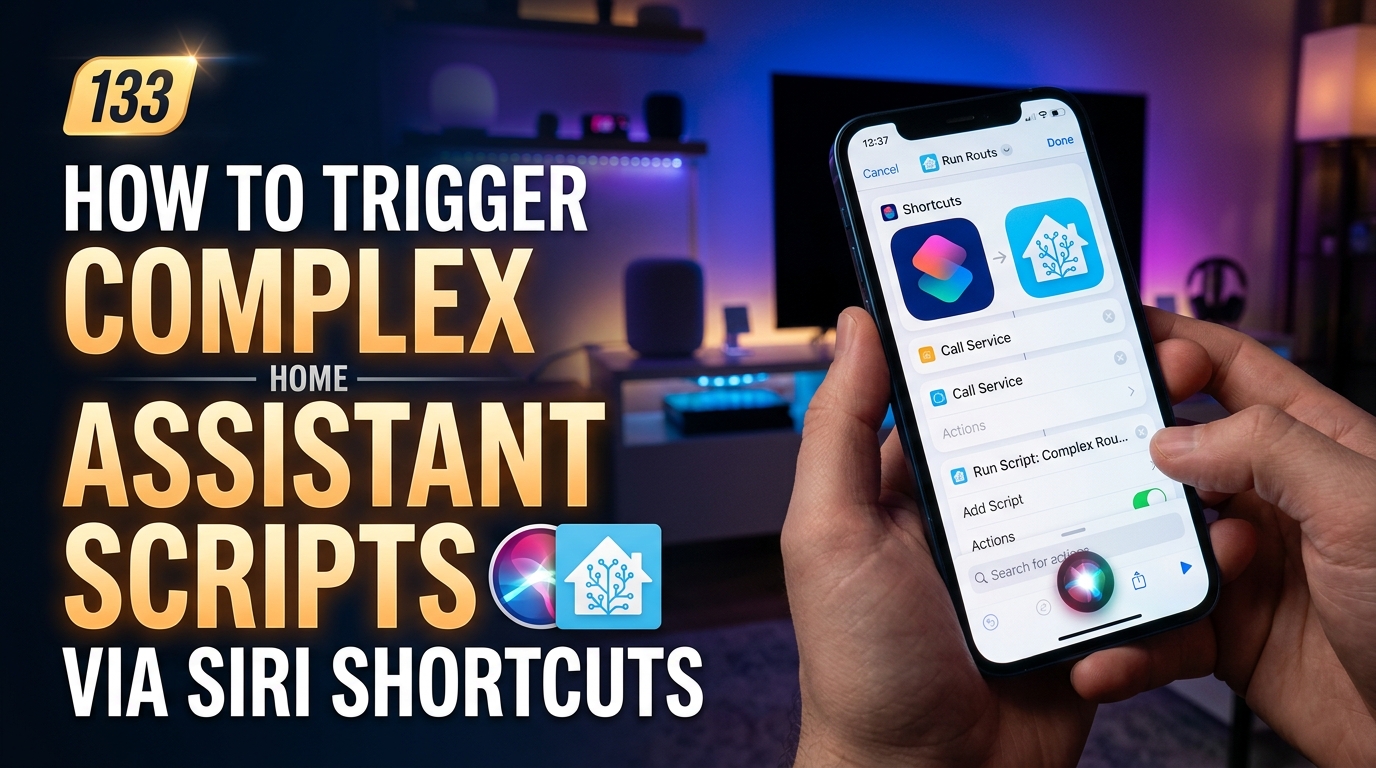
Discover how you can seamlessly integrate the power of Siri Shortcuts with your home assistant setup to trigger intricate and personalized scripts with just a voice command. Unlock a new level of convenience and control in your smart home automation journey.
Setting up Siri Shortcuts
Siri Shortcuts allow users to create custom voice commands to trigger specific actions on their devices. To set up Siri Shortcuts on your iPhone or iPad, start by opening the Shortcuts app. Here, you can browse through pre-made shortcuts or create your own personalized ones. Tap the “+” icon to create a new shortcut and choose whether you want to start from scratch or use a suggested action template.
After selecting a starting point, you can add actions to your shortcut by browsing the available options or searching for specific actions. Customize each action with relevant parameters and settings to tailor the shortcut to your needs. Once you have completed setting up the actions, you can test the shortcut to ensure it functions as intended. Finally, give your shortcut a descriptive name and assign a custom voice command that Siri will recognize to trigger the shortcut.
Creating Home Assistant Scripts
Home Assistant scripts are a powerful tool that allow you to automate tasks and control your smart home devices with ease. To create a new script in Home Assistant, you can navigate to the “Scripts” section in the configuration interface. Click on the “+” button to add a new script.
When creating a script, you can define the name of the script, specify the sequence of actions it should perform, and choose the entities or services it will interact with. You can use YAML syntax to define the script’s structure, including triggers, conditions, and actions. Once the script is created, you can trigger it manually, set up automation rules to run it automatically based on certain events, or integrate it with Siri Shortcuts for voice control.

Integrating Siri Shortcuts with Home Assistant
Setting up the integration: To integrate Siri Shortcuts with Home Assistant, you first need to enable the Home Assistant iOS app to work with Siri. Open the Home Assistant app on your iOS device, navigate to the App Configuration section, and enable the Siri Shortcuts toggle. This will allow you to create custom shortcuts using the actions available in Home Assistant.
Creating custom Siri Shortcuts: Once the integration is set up, you can start creating custom Siri Shortcuts that interact with your Home Assistant setup. Use the Shortcuts app on your iOS device to create new shortcuts, selecting actions from Home Assistant as steps in the shortcut workflow. You can combine multiple actions into a single shortcut to trigger complex automations with a simple voice command to Siri.
Testing the Setup
Testing the integration: Once you have set up Siri Shortcuts and integrated them with Home Assistant, it is essential to test the setup thoroughly. Begin by executing various Siri commands that you have configured to trigger Home Assistant scripts. Check if the commands are executed correctly and if the expected actions are carried out by Home Assistant.
Quality assurance: During the testing phase, pay close attention to any inconsistencies or errors in the execution of Siri Shortcuts. Verify that the communication between Siri and Home Assistant is seamless and that the responses from Home Assistant are accurate. It is also advisable to test the setup in different scenarios to ensure its reliability and functionality under various conditions.
Troubleshooting Tips
Connection Issues: If you encounter connection issues between Siri Shortcuts and Home Assistant, first ensure that both devices are connected to the same Wi-Fi network. Check the settings on both apps to ensure they are configured correctly. Restarting both devices and routers can also help resolve connection problems.
Missing Entities: If you are missing entities or devices in your Home Assistant setup, double-check the configuration files to ensure they are properly defined. Verify that the entities are correctly named and that there are no typos in the configuration. Refreshing the entities list in the Home Assistant app may also help in displaying any missing entities.
Summary: In conclusion, integrating Siri Shortcuts with Home Assistant can greatly enhance the usability and convenience of your smart home setup. By leveraging the power of Siri voice commands and automation through Home Assistant scripts, you can streamline daily tasks and control your smart devices more efficiently.
Future Outlook: As technology continues to evolve, the possibilities for further customization and integration between Siri Shortcuts and Home Assistant are endless. Stay updated with the latest advancements in both platforms to take full advantage of new features and functionalities that can further enhance your smart home experience.