
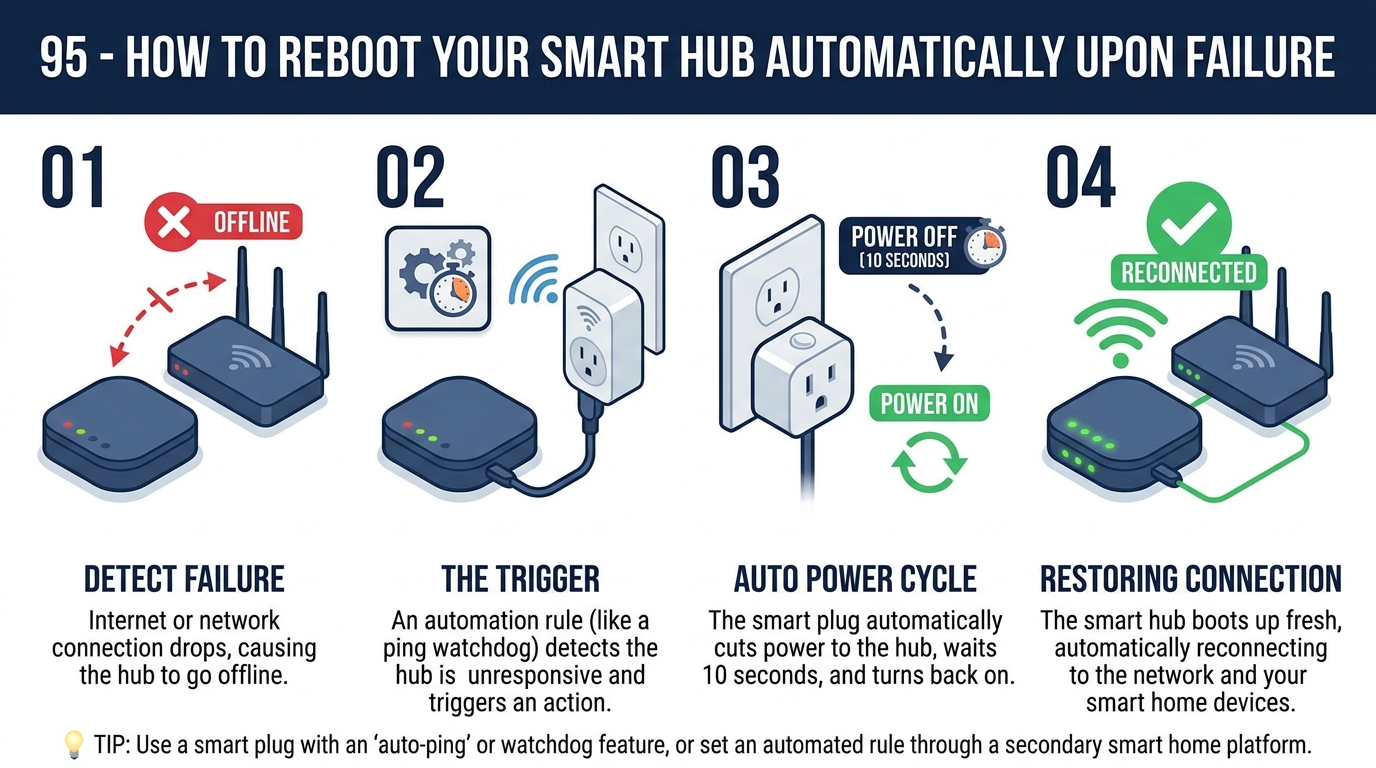
In today’s fast-paced world, the reliability of our smart devices is more crucial than ever. Imagine never having to worry about your smart hub failing and causing disruptions to your daily routine. By learning how to reboot your smart hub automatically upon failure, you can ensure seamless operation and peace of mind. Let’s explore the simple yet effective steps to keep your smart hub running smoothly at all times.
Understanding Smart Hub Failures
Common Causes of Smart Hub Failures: Smart hub failures can be caused by various factors, including hardware malfunctions, software bugs, network connectivity issues, and power outages. Hardware malfunctions may result from defective components, overheating, or physical damage. Software bugs can lead to system crashes or unresponsive behavior. Poor network connectivity can disrupt communication between the smart hub and connected devices, affecting overall functionality. Power outages or fluctuations can also damage the smart hub and cause it to fail.
Identifying Smart Hub Failures: To identify smart hub failures, users should look out for symptoms such as frequent disconnections, unresponsive controls, error messages, or abnormal sounds coming from the device. Users can also check the smart hub’s status indicators, logs, or diagnostic tools provided by the manufacturer to pinpoint the root cause of the failure. Understanding the nature of the failure is crucial for implementing the appropriate troubleshooting steps or seeking professional assistance to resolve the issue.
Setting Up Automatic Reboot
Setting up automatic reboot for your smart hub can help improve its performance and address issues that may arise from prolonged usage. By scheduling regular reboots, you can prevent memory leaks, system crashes, and other software-related problems that can affect the functionality of your smart hub.
To set up automatic reboot, you can access the settings menu of your smart hub device either through a web interface or a dedicated mobile app. Look for the option to schedule a reboot and choose a convenient time when the device is not in heavy use, such as during the early hours of the morning. Make sure to save your settings to ensure that the automatic reboot is activated.
Troubleshooting Common Issues
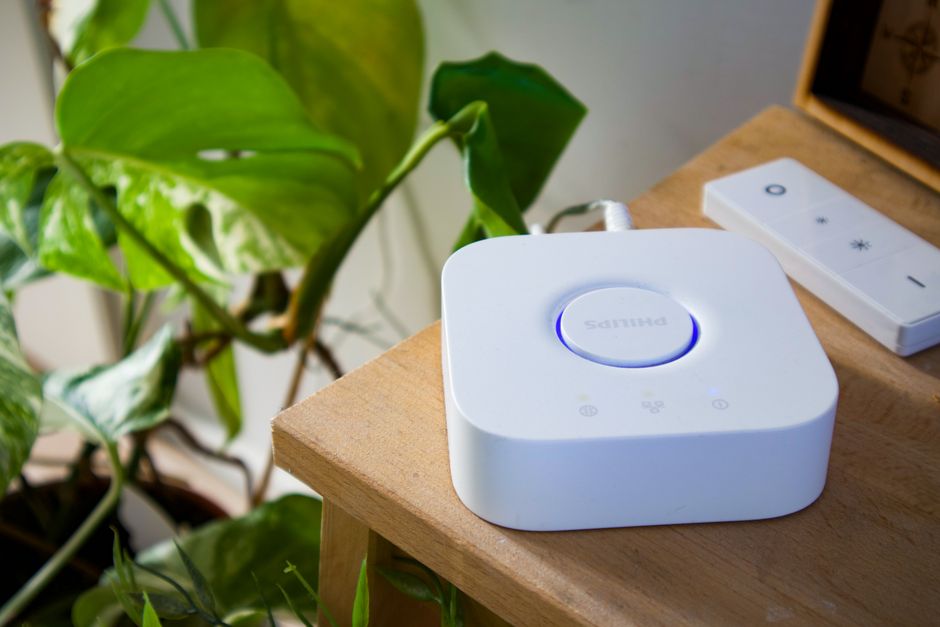
Connection Problems: One common issue with smart hubs is connectivity problems. This can be due to issues with the Wi-Fi network, Bluetooth connections, or Z-Wave/Zigbee networks. To troubleshoot, check the network settings on the smart hub and ensure it is properly connected to the internet. You may also need to reboot the router or reset network configurations on the hub.
Device Pairing Failures: Another common issue users face is difficulties in pairing devices with the smart hub. This can be caused by compatibility issues, distance from the hub, or interference from other devices. To troubleshoot, make sure the device is compatible with the hub, check the distance between the device and the hub, and eliminate potential sources of interference. Sometimes, unpairing and repairing the device can also resolve pairing failures.
Benefits of Automatic Reboot
Improved Performance: One of the key benefits of setting up automatic reboot for your smart hub is the potential for improved performance. Over time, smart hubs can become bogged down with excess data and temporary files, leading to slower response times and decreased efficiency. By regularly rebooting the system, you can help clear out these unnecessary files and processes, resulting in smoother operation and faster response times.
Enhanced Reliability: Another advantage of automatic reboot is the enhanced reliability it can provide for your smart hub. Regularly restarting the system can help prevent crashes and freezes by refreshing the system’s resources and clearing out any potential issues that may be affecting its stability. This can lead to a more reliable and consistent user experience, reducing the likelihood of downtime or disruptions in service.
Best Practices for Smart Hub Maintenance
Regular Cleaning: One of the best practices for smart hub maintenance is regular cleaning. Dust and debris can accumulate over time, affecting the performance of the device. Use a soft, dry cloth to gently wipe the exterior of the smart hub to keep it clean and free from dust.
Software Updates: Another important practice is to regularly update the software of the smart hub. Manufacturers often release updates to improve performance, fix bugs, and enhance security. Check for updates regularly either through the smart hub’s settings menu or the manufacturer’s website to ensure your device is running the latest software version.
Summary: In conclusion, maintaining a healthy and efficient smart hub is crucial for ensuring smooth operation of your smart home devices. By following the best practices for smart hub maintenance and setting up automatic reboot schedules, you can minimize downtime and prevent potential issues from escalating. Remember to regularly check for software updates, keep the hub clean and well-ventilated, and troubleshoot any common issues promptly to keep your smart home running smoothly.
Looking Ahead: As technology continues to evolve, smart hubs will play an increasingly integral role in the interconnected ecosystem of smart devices. Keeping your smart hub well-maintained and up-to-date will not only optimize performance but also enhance security and compatibility with new devices and features. By staying proactive and informed about smart hub maintenance, you can enjoy a seamless and reliable smart home experience for years to come.