
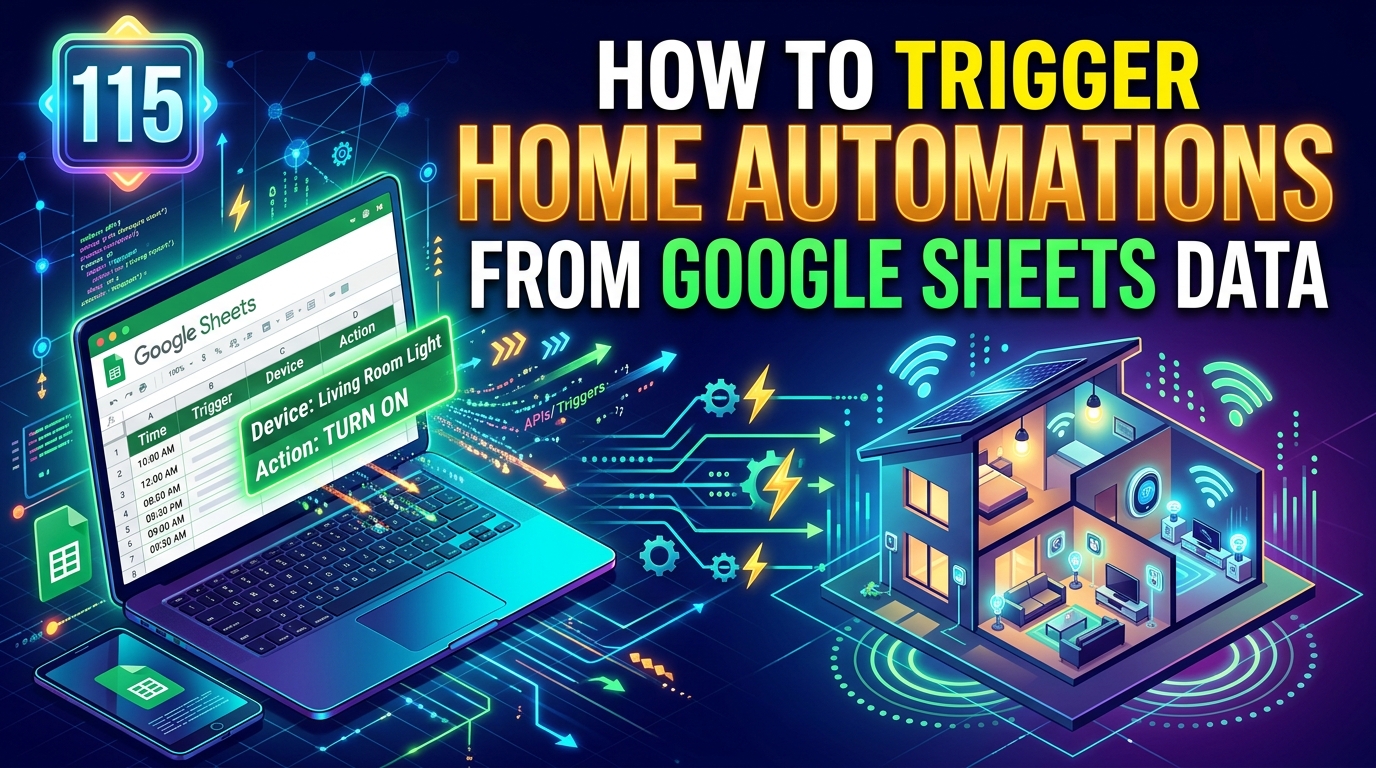
Learn how you can seamlessly integrate Google Sheets data with your home automation system to trigger customized actions and streamline your daily routines.
Setting Up Google Sheets
Google Sheets is a powerful tool for organizing and analyzing data in a spreadsheet format. To set up Google Sheets, first, you need to have a Google account. Once you have logged into your Google account, you can access Google Sheets by navigating to Google Drive and creating a new spreadsheet.
Within Google Sheets, you can customize the layout, add and format data, and collaborate with others in real-time. You can also use built-in functions and formulas to perform calculations and analysis on your data. Additionally, Google Sheets allows you to import and export data in various formats, making it a versatile tool for data management and analysis.
Creating Home Automations
Home automations are a convenient way to streamline tasks and improve efficiency in your living space. By creating home automations, you can set up routines and schedules for various devices and systems to operate automatically. This can include turning on lights at specific times, adjusting thermostats, or even starting your coffee maker in the morning.
When creating home automations, it’s important to consider the devices and platforms you are using. Many smart home systems offer integration with popular services like Google Sheets, allowing you to trigger actions based on data in your spreadsheets. By leveraging this integration, you can create complex automations that respond to changes in your data, providing a personalized and efficient experience in your home.

Linking Google Sheets to Home Automation
Connecting Google Sheets to Home Automation: To link Google Sheets to your home automation system, you can use Google Apps Script to create custom functions that interact with your smart devices. By writing scripts in the Google Sheets script editor, you can access data from your spreadsheet and trigger actions in your home automation setup.
Automating Data Sync: With Google Sheets linked to your home automation, you can automate data synchronization between the two platforms. For example, you can set up triggers in Google Apps Script to update device status in your spreadsheet when changes occur in your smart home setup. This seamless integration allows for real-time monitoring and control of your smart devices directly from your Google Sheets.
Testing the Automation
Testing the automation is a critical step to ensure that your home automations are working as intended. Start by running a test scenario to check if the triggers and actions are functioning correctly. This can involve simulating the conditions that should activate the automation, such as changing a value in the Google Sheet that should trigger a response from your smart devices.
Once you’ve set up the test scenario, monitor the automation closely to observe the sequence of events and verify that each step is executed as expected. Make note of any issues or unexpected behaviors that may arise during testing. It’s essential to conduct thorough testing to identify and address any potential issues before relying on the automation for regular use.
Troubleshooting Tips
Common Issues: When troubleshooting your home automation setup using Google Sheets, you may encounter common issues such as incorrect formula syntax, missing permissions, or data not updating in real-time. To address these issues, double-check your formulas for errors, ensure that the necessary permissions are granted to your Google Sheets and home automation tools, and troubleshoot any delays in data updates by refreshing your sheets or automation triggers.
Debugging Tools: Utilize the debugging tools available in Google Sheets and your home automation platform to identify and resolve issues efficiently. For Google Sheets, use the “Show Formulas” feature to view the underlying formulas in your cells and check for errors. In your home automation platform, monitor activity logs, error messages, and trigger events to pinpoint where problems may be occurring. By leveraging these tools, you can troubleshoot effectively and maintain the functionality of your automated processes.
Summary: In conclusion, integrating Google Sheets with home automation systems can greatly enhance the functionality and efficiency of your smart home setup. By leveraging the power of Google Sheets formulas, scripts, and triggers, you can automate various tasks, monitor data, and control devices with ease.
Final Thoughts: As you explore the possibilities of using Google Sheets for home automation, remember to regularly update your spreadsheets, test your automations thoroughly, and troubleshoot any issues that may arise. With dedication and creativity, you can create a personalized smart home experience that meets your specific needs and preferences.